AI Tools
A tool is a saved instruction you can run against the article you have open, without typing it out. Tools appear in the editor's AI Tools drop-down; picking one opens the assistant panel with that instruction already sent.
They are configured in the AI Tools card at the bottom of Settings.
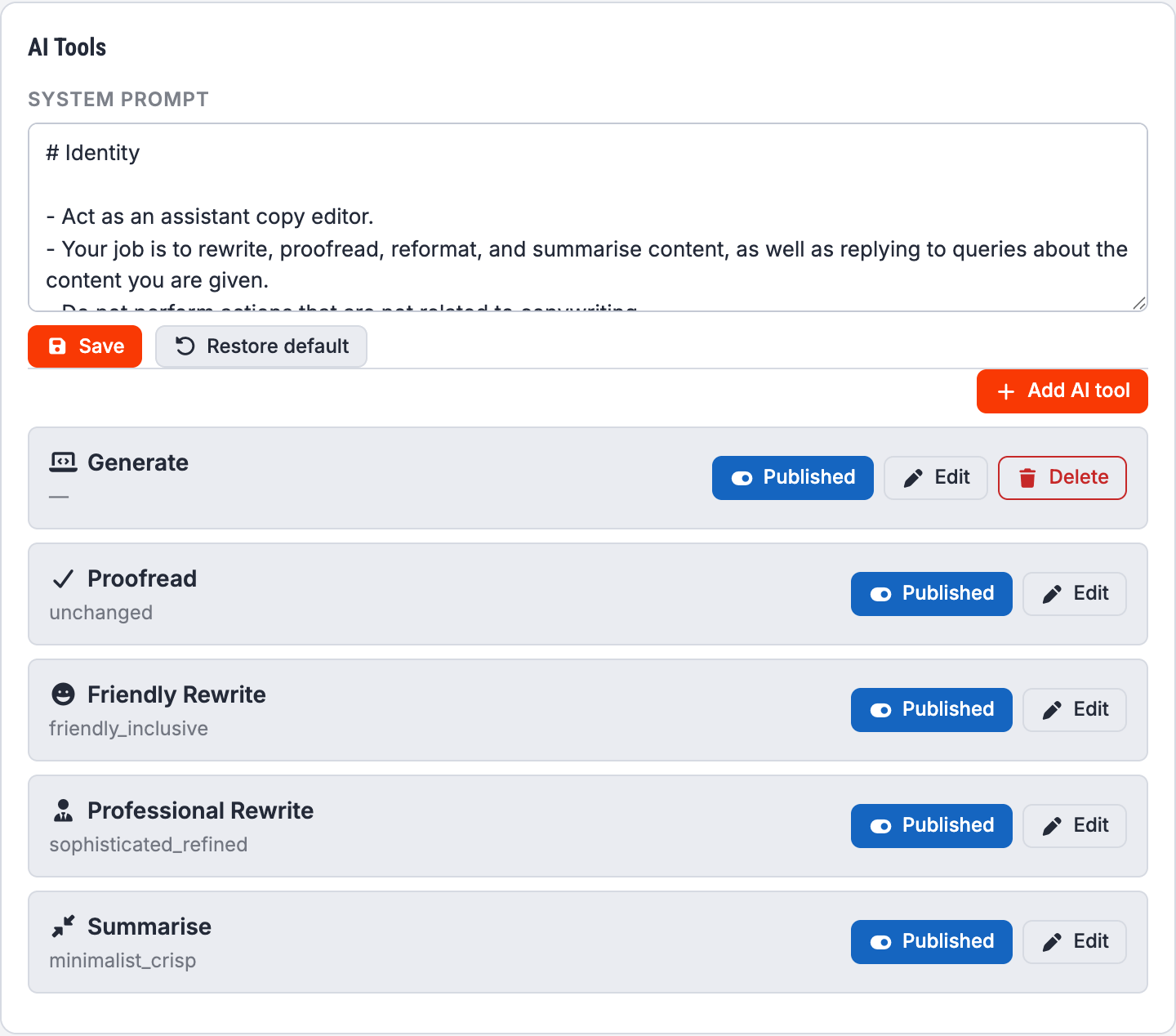
The system prompt
At the top of the card is the system prompt: the standing instruction sent with every request, whichever tool you use. It is what tells the model that it is a copy editor working on a Joomla article, what to do with the HTML it is given, and what not to do.
Save stores your edits. Restore default puts back the prompt Grafida ships with.
Tip
This is the right place to put things that are always true for your writing — your house style, the variety of English you use, whether you want British or American spelling, or a standing instruction never to invent facts.
The bundled tools
Grafida ships with five, all enabled:
| Tool | What it does |
|---|---|
| Generate | Writes an article from a brief. Returns Markdown rather than HTML. |
| Proofread | Corrects spelling, grammar and punctuation, leaving the tone alone. |
| Friendly Rewrite | Rewrites the article in a warmer, more inclusive voice. |
| Professional Rewrite | Rewrites the article in a more formal, polished voice. |
| Summarise | Shortens the article, keeping the substance. |
None of them can be deleted, because they are part of the application. They can be switched off, edited, and put back to their shipped state.
Editing a tool
Edit opens the tool's settings.
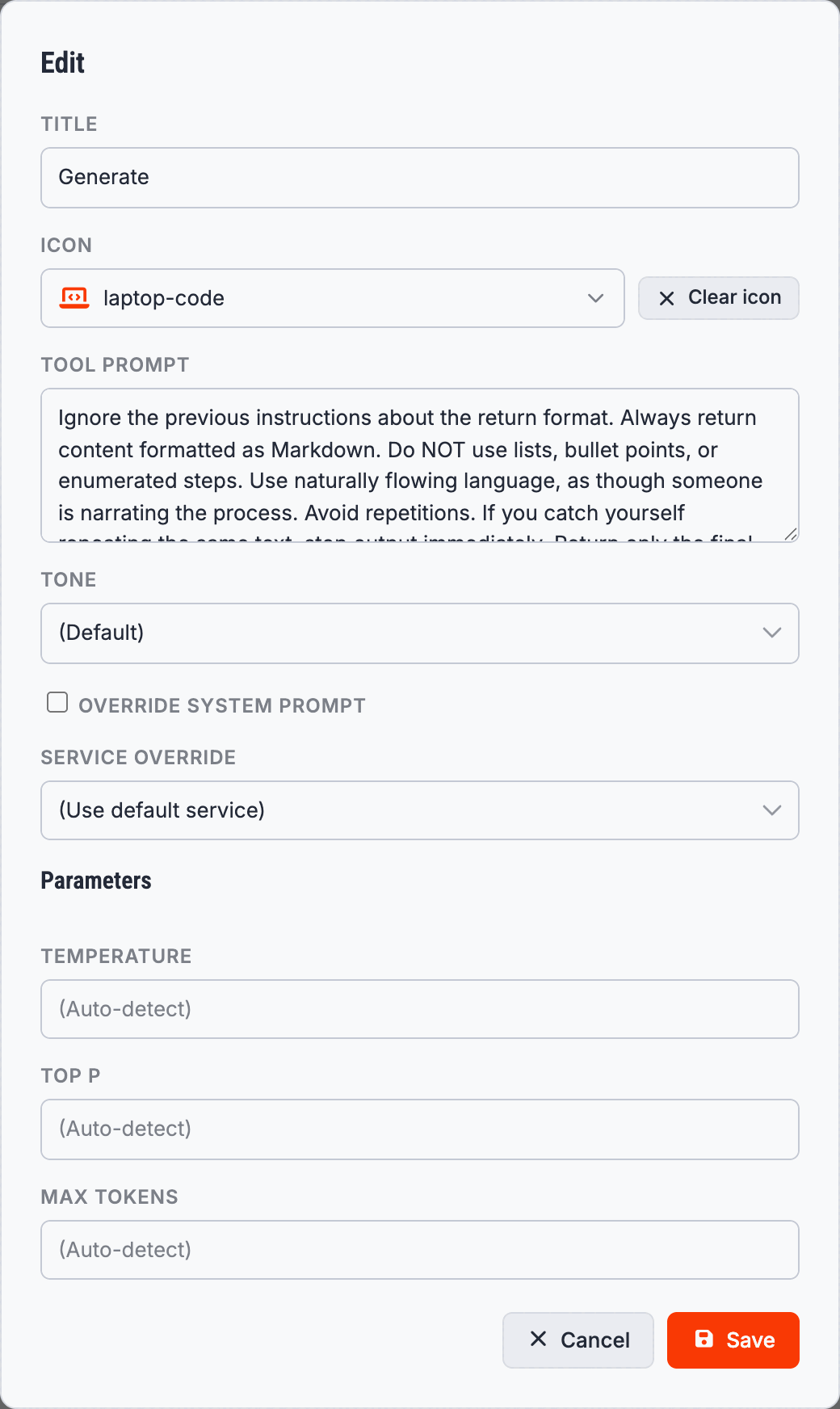
Title is the label in the AI Tools menu.
Icon is the glyph shown beside it, chosen from a searchable list of every icon Grafida ships.
Tool prompt is the instruction itself. This is where the real work is: it is sent as your first message, with the article attached as context.
Tone picks one of a library of writing voices — the same list Joomla's own AI plugin uses — which is appended to the instruction. (Default) adds nothing; unchanged explicitly tells the model to leave the voice alone, which is what Proofread wants.
Override system prompt makes this tool's prompt replace the global system prompt rather than being added to it. Use it for a tool that has nothing to do with copy editing.
Service override runs this tool against a specific AI service instead of the default one. This is how you use a big, expensive model for Generate and a small, cheap, fast one for Proofread.
Parameters — Temperature, Top P, Max tokens — override the service's own settings for this tool only. Leave them blank to inherit.
Switching a tool off
The Published toggle on each row hides the tool from the AI Tools menu without deleting it.
Adding your own
Add AI tool creates a tool of your own, with the same fields. Custom tools can be deleted; bundled ones cannot.
Some things worth a tool of your own:
- “Write a meta description of at most 155 characters for this article, and nothing else.”
- “List the factual claims in this article that a reader might reasonably challenge.”
- “Suggest five headlines. Return them as a plain bulleted list.”
- “Translate this article into German, keeping the HTML structure exactly as it is.”
Tip
A tool's reply lands in the chat panel, not in the article. You read it, then decide whether to press Insert into editor. Nothing a tool produces reaches the article by itself.