AI Services
An AI service is one connection to one model: a provider, an endpoint, a model name and, usually, an API key. You configure them in the AI Services card at the bottom of Settings.
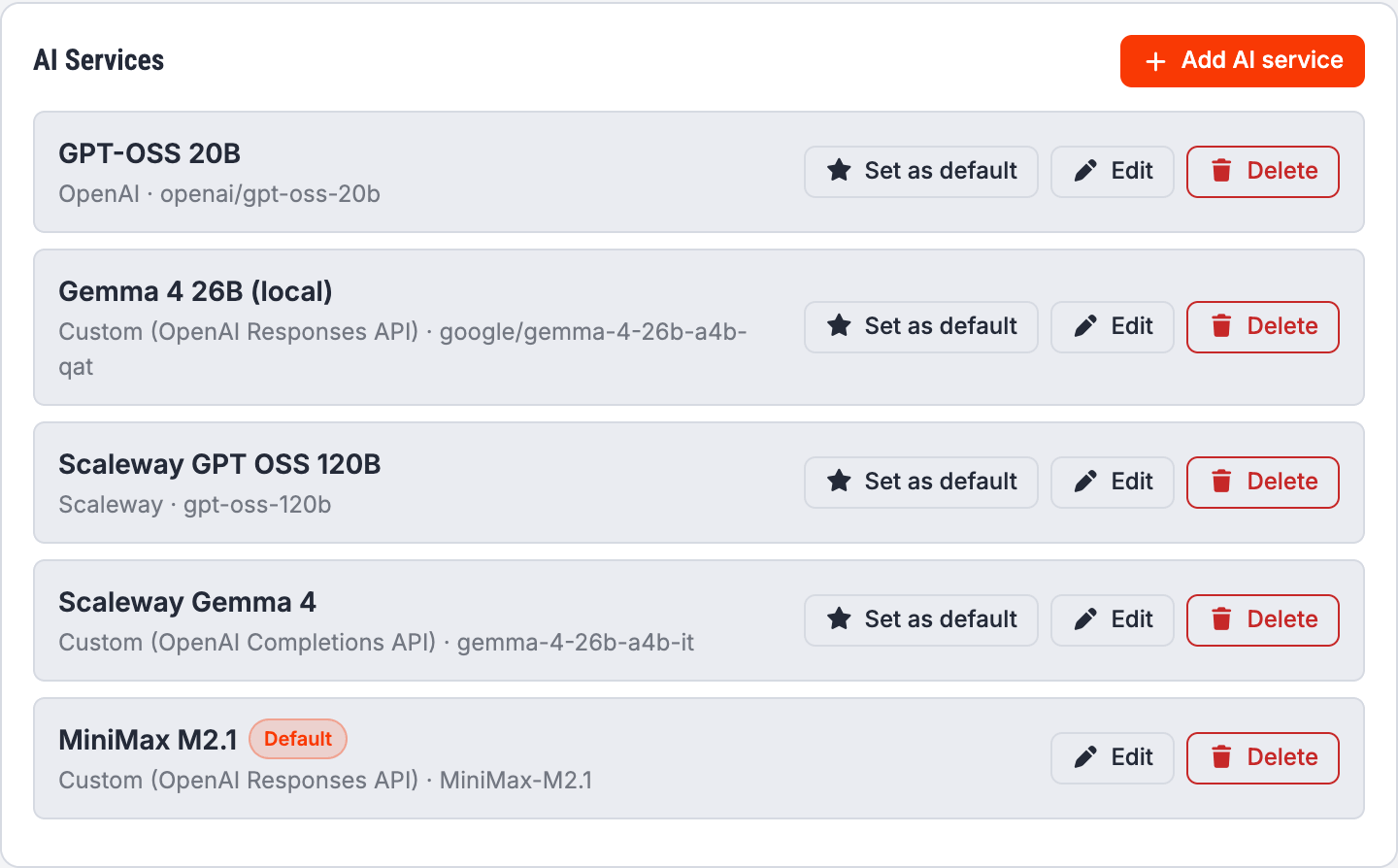
You can configure as many as you like. One of them is the default, marked with a badge; it is what the assistant uses unless a tool says otherwise. Use Set as default to change it. If you never set one, the oldest service wins.
Adding or editing a service
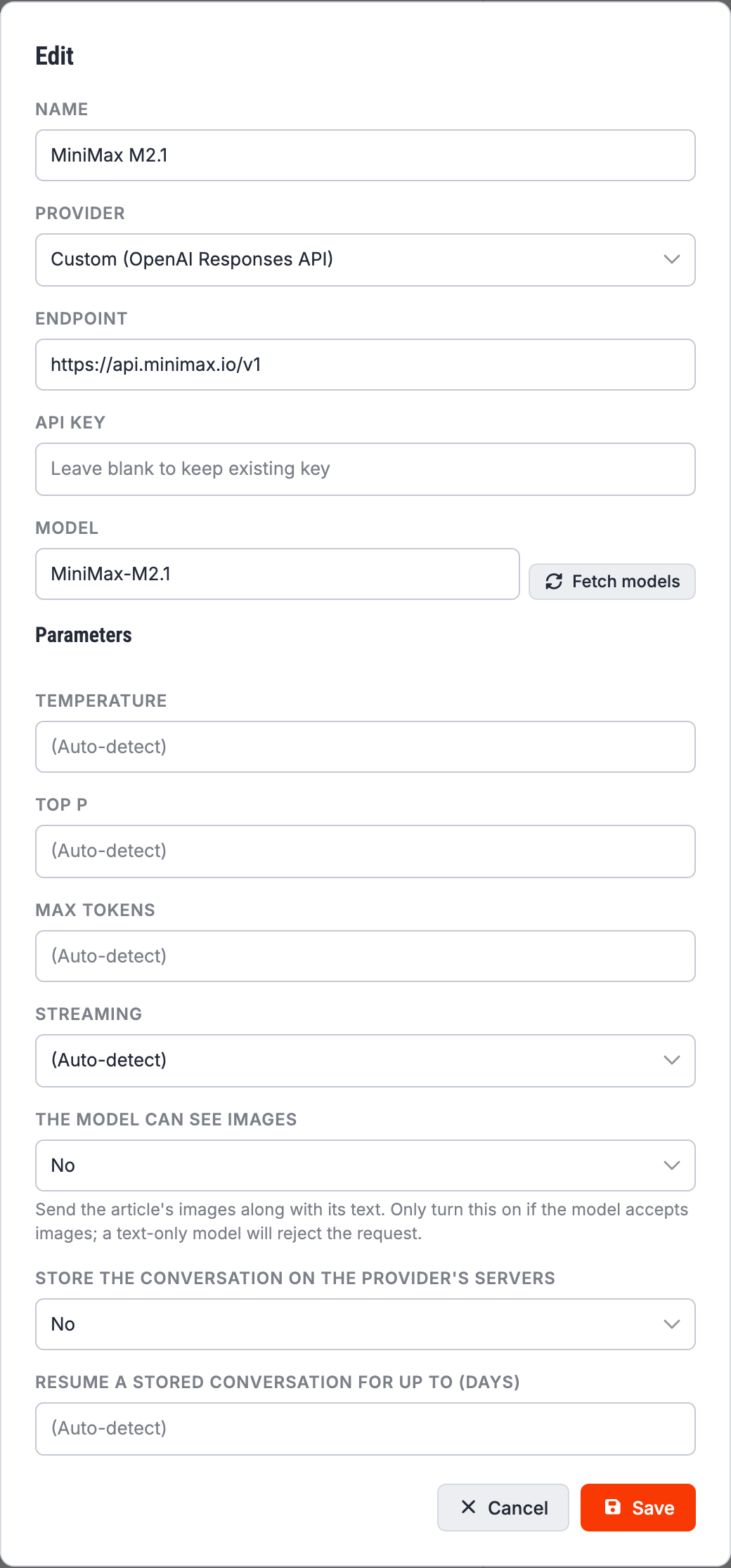
Name is yours to choose. It is what you will see in drop-downs, so make it descriptive: “Claude for proofreading”, “Local Llama”.
Provider picks the wire format and fills in a sensible endpoint. Grafida ships with OpenAI, Anthropic, Cohere, DeepSeek, Google, Groq, MiniMax, Mistral, OpenRouter, Perplexity, Scaleway and GitHub Models, plus two catch-alls:
- Custom (OpenAI Completions API) for anything that implements OpenAI's older
/chat/completionsinterface. This is what most third-party and local servers speak, including LM Studio and Ollama. - Custom (OpenAI Responses API) for anything implementing OpenAI's newer
/responsesinterface.
Endpoint is the base URL of the API. Picking a known provider fills it in for you; you only need to change it for a custom or self-hosted endpoint, or for a provider that gives you a project-specific URL. Do not append the chat path — Grafida adds it.
API key is the provider's key. It is stored in your operating system's secret store, not in Grafida's database — see Secrets security. When you edit an existing service the field is blank: leave it blank to keep the key you already have.
Model is the model identifier, as the provider spells it. Fetch models asks the provider for the list, which saves you looking it up — it needs the endpoint and key to be right first.
Parameters
All of these may be left on (Auto-detect), which means “send nothing and let the provider use its own default”. Fill them in only when you have a reason to.
Temperature and Top P control how adventurous the model is. Lower values give more predictable text.
Max tokens caps the length of the reply.
Streaming decides whether the reply is shown word by word as it arrives, or all at once when it is finished. Leave it on auto unless your provider does not support streaming.
The model can see images
Off by default. When on, the article's pictures are sent along with its text, so the model can comment on them or write alt text.
Warning
Only switch this on for a model that actually accepts images. A text-only model does not ignore the pictures — it rejects the whole request.
Pictures are scaled down to 1024 pixels and capped at eight per request before being sent, because an article image is routinely several thousand pixels wide and every vision model downsamples it on arrival anyway.
Only images hosted on your own site, or still local to Grafida, are sent. An image hotlinked from a CDN or a third-party site is skipped.
Store the conversation, and resume for up to (days)
These two only appear for providers using the Responses API (OpenAI, and Custom (OpenAI Responses API)), which can remember a conversation on its own servers.
With Store on, a follow-up message sends only the new turn plus a reference to the previous reply, instead of re-uploading the whole conversation — which matters, because the first message in every Grafida chat carries the entire article. Resume a stored conversation for up to (days) is how long Grafida assumes the provider will keep it; the default is 15 days.
This is purely an optimisation. If the provider has forgotten the conversation, Grafida notices and retransmits the whole history automatically. Aborting a reply, or any error, drops the reference and the next message sends everything again.
Note
“Store” means the provider keeps a copy of the conversation. If that is not acceptable for your content, set it to No.
Using a local model
A model server running on your own machine — LM Studio, Ollama, llama.cpp, and so on — works well:
pick Custom (OpenAI Completions API) and point the endpoint at it, e.g.
http://127.0.0.1:1234/v1. The API key can usually be anything.
Two things trip people up.
Important
The local server must have CORS enabled. Grafida calls it from the application's own web view, which triggers a CORS pre-flight. LM Studio, for one, ships with CORS off — turn on Enable CORS in its server settings.
Without it Grafida still works, by routing the call through its own back end, but that path cannot stream: the reply arrives all at once, and while it is being generated the rest of the interface stops responding. If your local model makes Grafida “freeze”, this is why.
Important
On macOS, a plain http:// endpoint on another machine — a LAN box at
http://192.168.1.20:1234, say — is blocked by the system before the request leaves Grafida,
with the same symptom as the CORS problem above. Grafida's macOS build asks the system for an
exemption, so this should not bite; if it does, use https:// or run the model on the same
machine.
Deleting a service
Delete removes the service and its stored key. Any tool that pointed at it falls back to the default service.